Join us on Discord
Notes
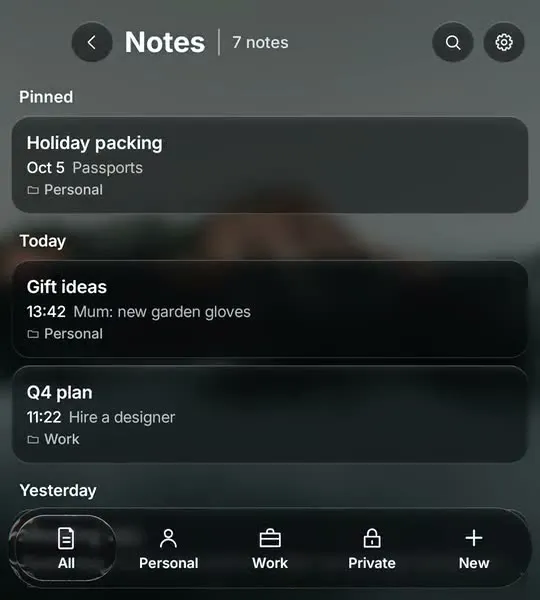
Write on the keys, with Personal, Work and Private folders and formatting from a glass bar.
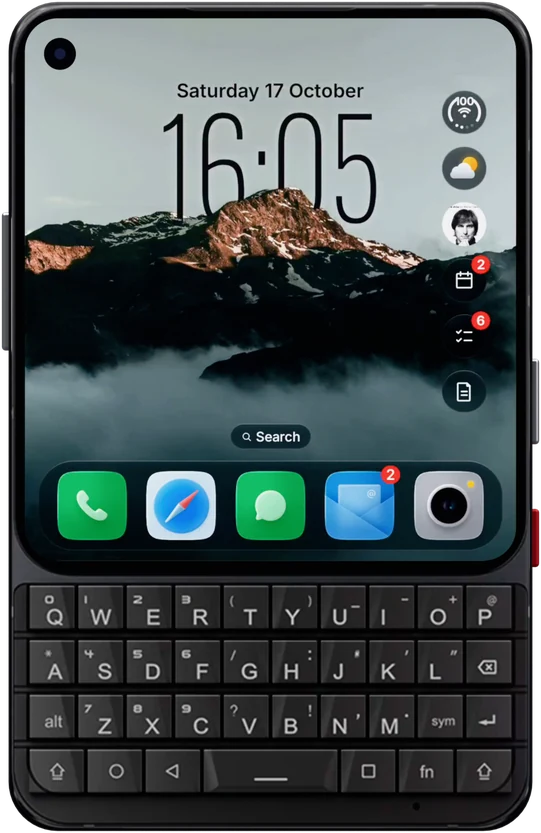
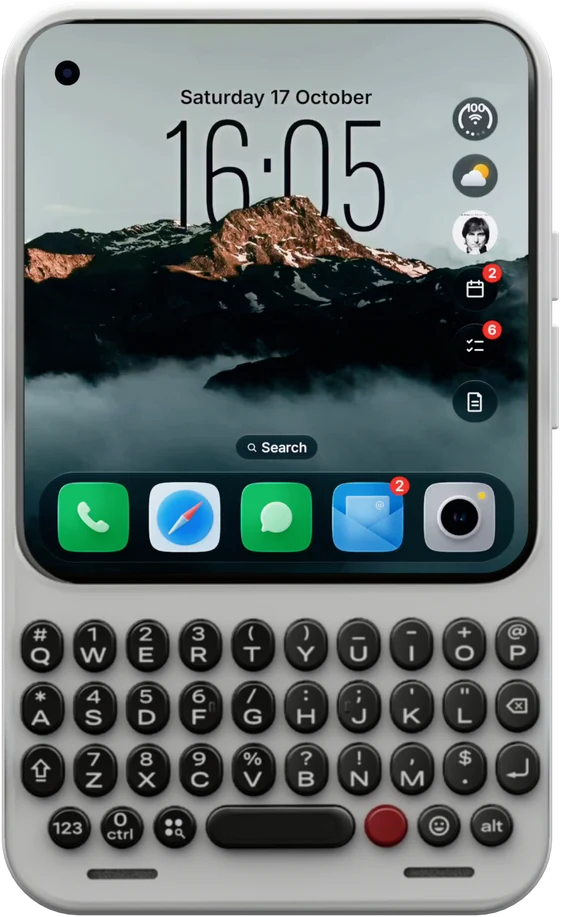
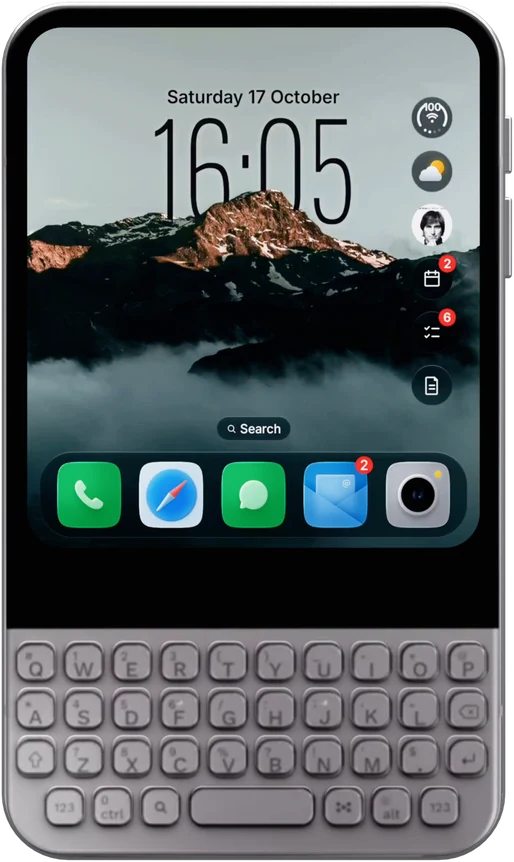
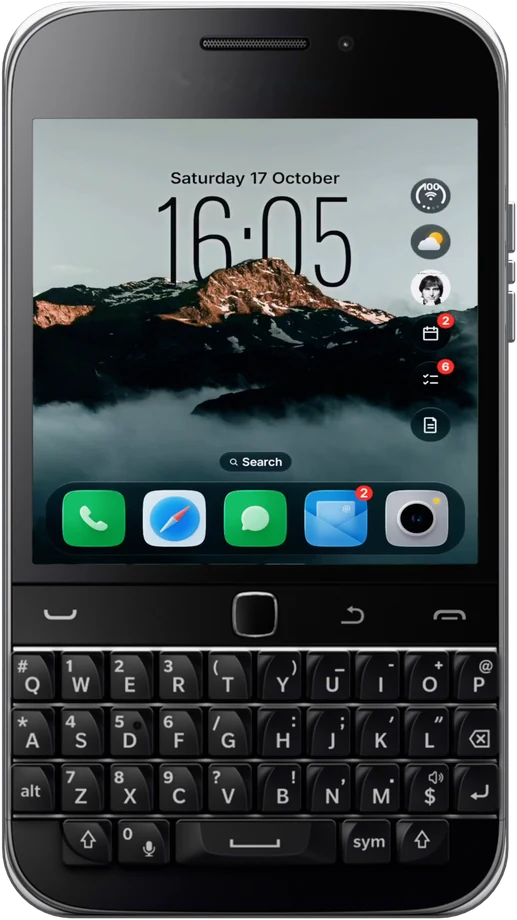
Glass OS turns the Unihertz Titan 2 into a phone that looks like a new iPhone and works like a BlackBerry. Start typing on the Home Screen and it opens your apps, sends your messages and keeps your notes, to-dos and events.
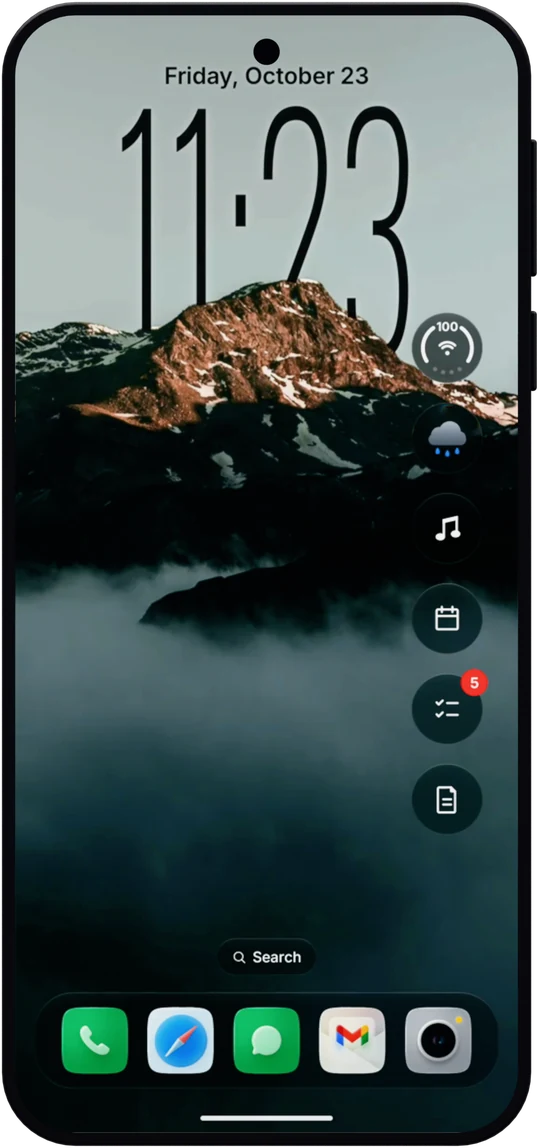
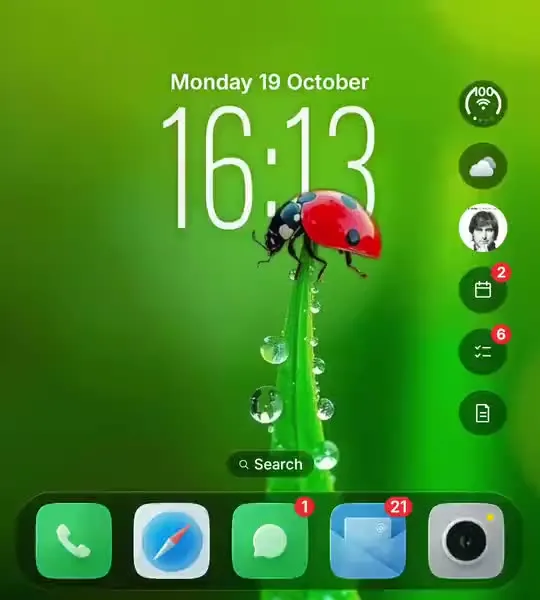
The Titan 2's 4.5 inch square screen gets a layout built for it, with the clock, the widgets and four rows of apps sized to fit instead of a tall phone layout squashed down.
Type an app's name and press Enter to open it. Start with a symbol to add a to-do, a note, an event or a message in one line, without touching the screen.
The Titan 2's keys are touch sensitive. Glass OS ignores a thumb resting on them, so typing never taps the screen by accident.
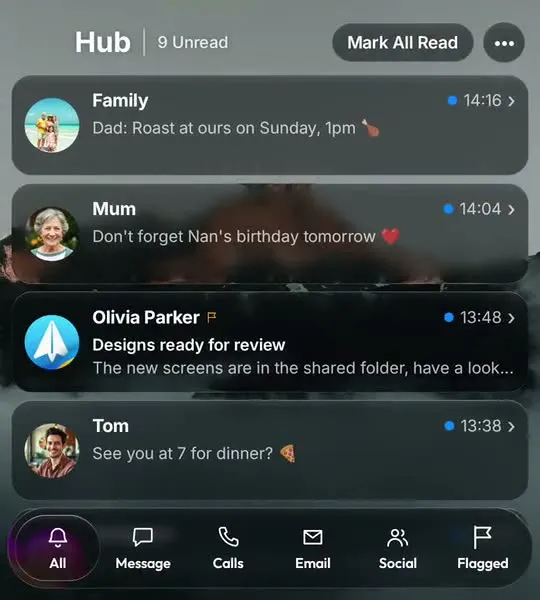
Swipe right for the Hub: WhatsApp, Messages, email and calls together, with a reply box you type into on the keys.
The Titan 2 comes with a standard Android home screen that treats the keyboard as an afterthought. Glass OS starts from the keys. Typing on the Home Screen searches your apps straight away, and a symbol at the start adds things without opening anything: a dash for a to-do, an exclamation mark for a note, a star for an event.
It changes how the phone looks too. Every pane is real liquid glass that bends the wallpaper behind it, the clock sits behind the subject of your wallpaper, and the dock, folders and badges work like an iPhone. The full feature tour has a video for each one, and there's a separate page for the smaller Titan 2 Elite.
A few things worth setting up on a Titan 2: pick a wallpaper with a clear subject so the depth clock has something to stand behind, give your most used apps a key shortcut, and turn on Double Tap To Lock so you can switch the screen off without reaching for the side.
Full specs for the phone are on Unihertz's site.
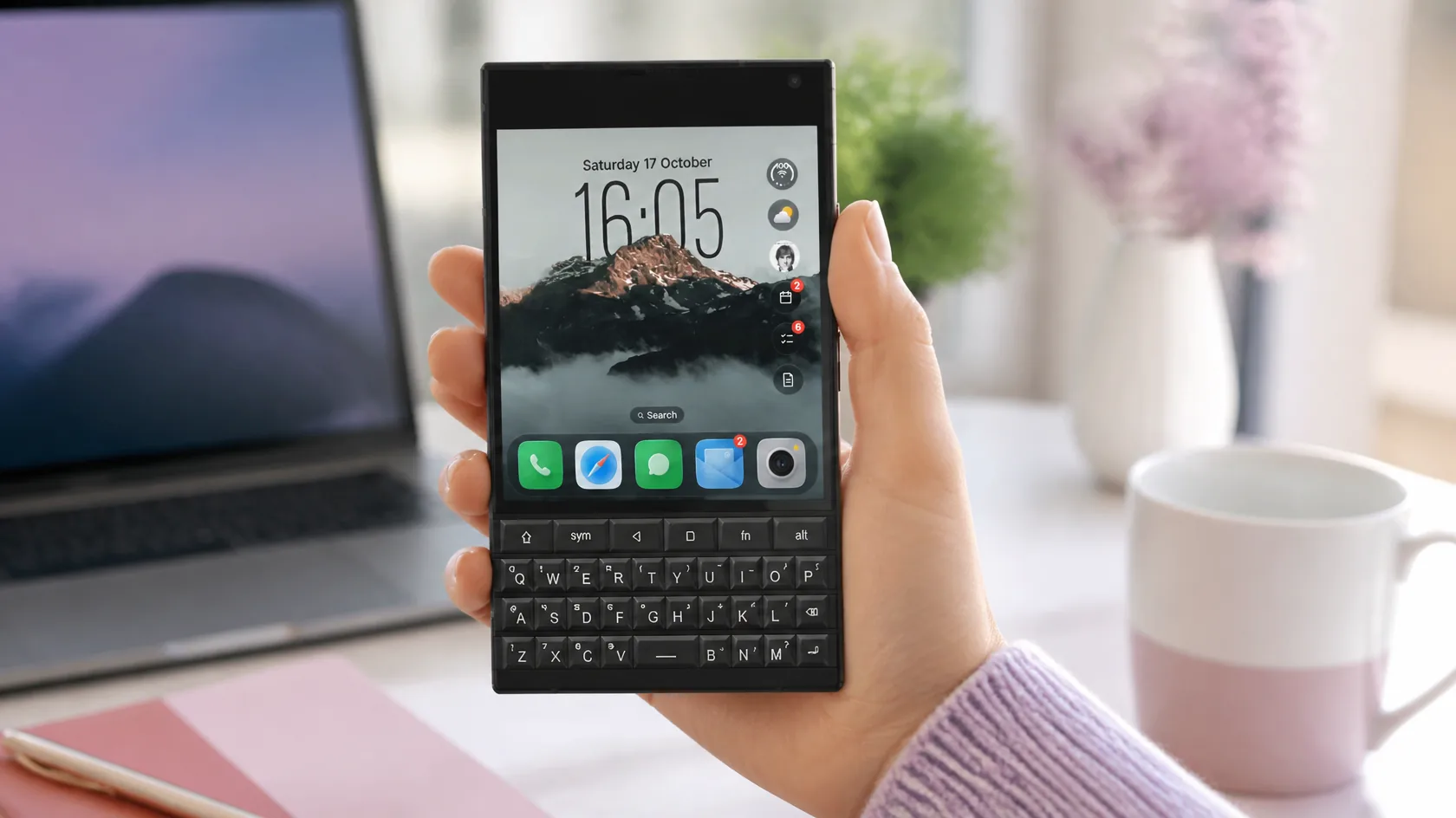
Your Titan 2's square screen, filled with a clock that has depth, glass bubbles and a tidy dock.
Choose a built-in wallpaper or one of your own photos and the time slips behind the subject, like the iPhone lock screen. The clock is sized for the square screen, so the subject still fits.
Glass bubbles down the right of the Titan 2's Home Screen open into the forecast, what's playing, your next events, your to-dos and your notes. A red number shows when one needs you.
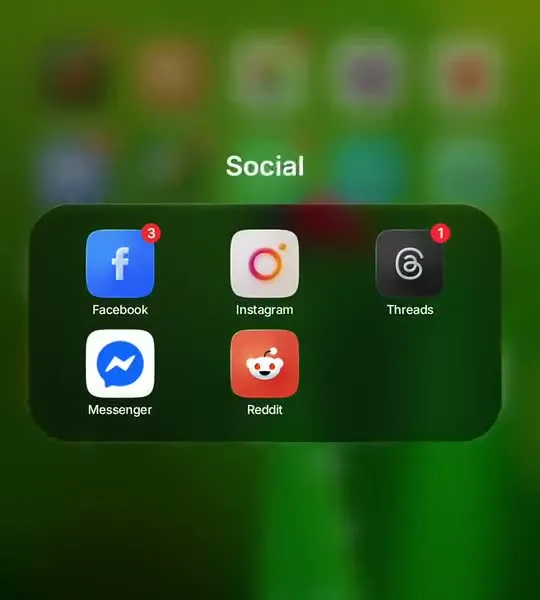
Hold an icon to move it, drop it on another to make a folder, and keep your five favourites in the glass dock. Any icon pack from the Play Store works too.
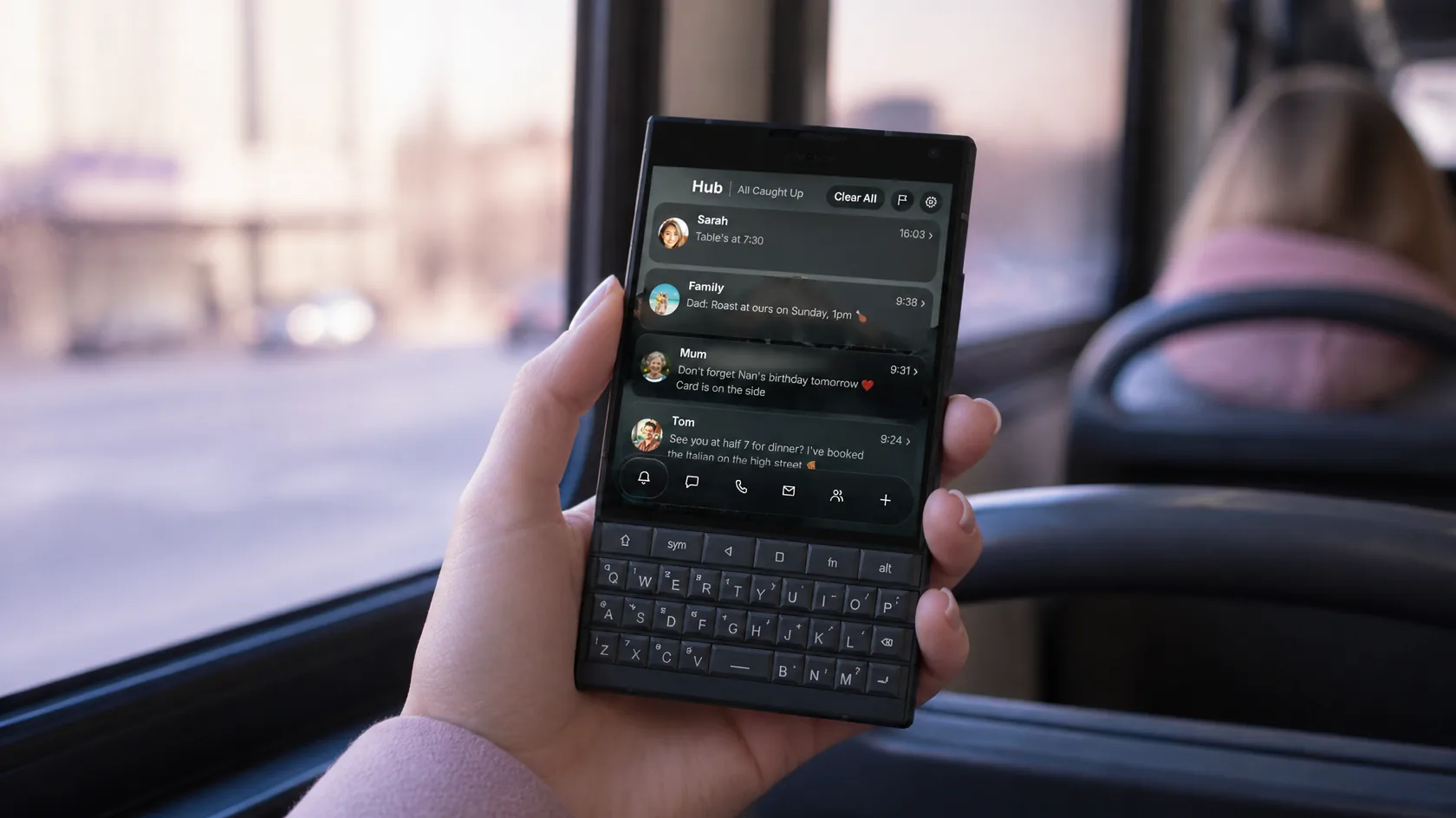
Every chat, email and call lands in one glass list, and you answer it on the Titan 2's keys.
Swipe right from the Home Screen and every notification is waiting: WhatsApp, Messages, email and missed calls, sorted into tabs. Each card has the sender's photo, and a swipe flags it or clears it.
The Titan 2's 4.5 inch screen gives the glass room to show off. The dock, the Hub cards and the tab bars bend whatever slides under them, and a flatter classic look is one switch away.
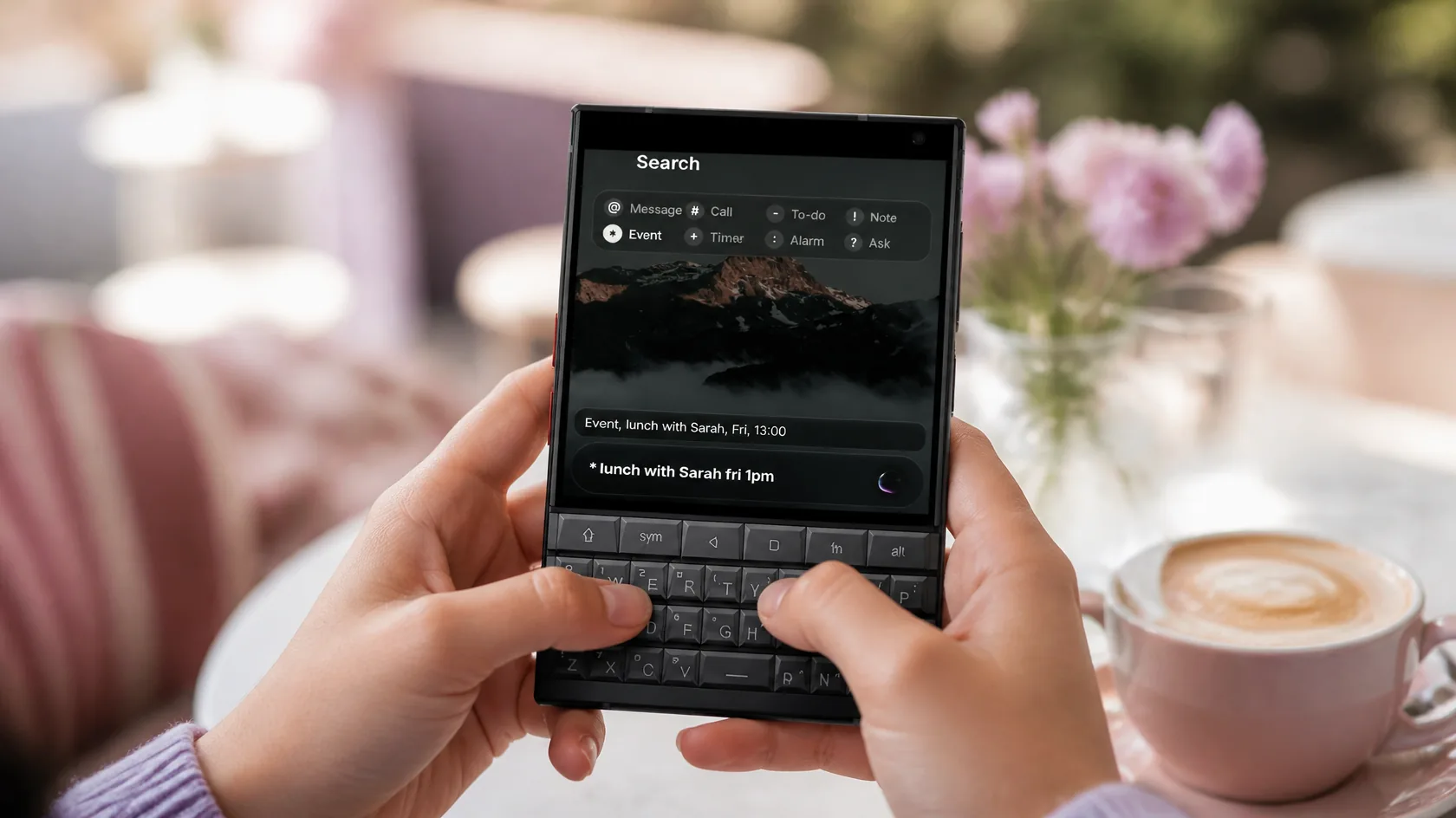
Tap out an app name or a quick command on the Titan 2's keyboard and it's done.
Start typing on the Home Screen and Glass OS searches your apps as you go. Put a symbol first and the same line becomes a to-do, a note, an event, a message or a call. Dates like friday 10am are understood.
Three apps built in, all typed into from the Titan's keyboard. See every feature on the Glass OS home page.
Write on the keys, with Personal, Work and Private folders and formatting from a glass bar.
Type a dash on the Home Screen and the to-do is added. Tick it off here later.
Your phone's calendars in a month view or a list, sized for the square screen.
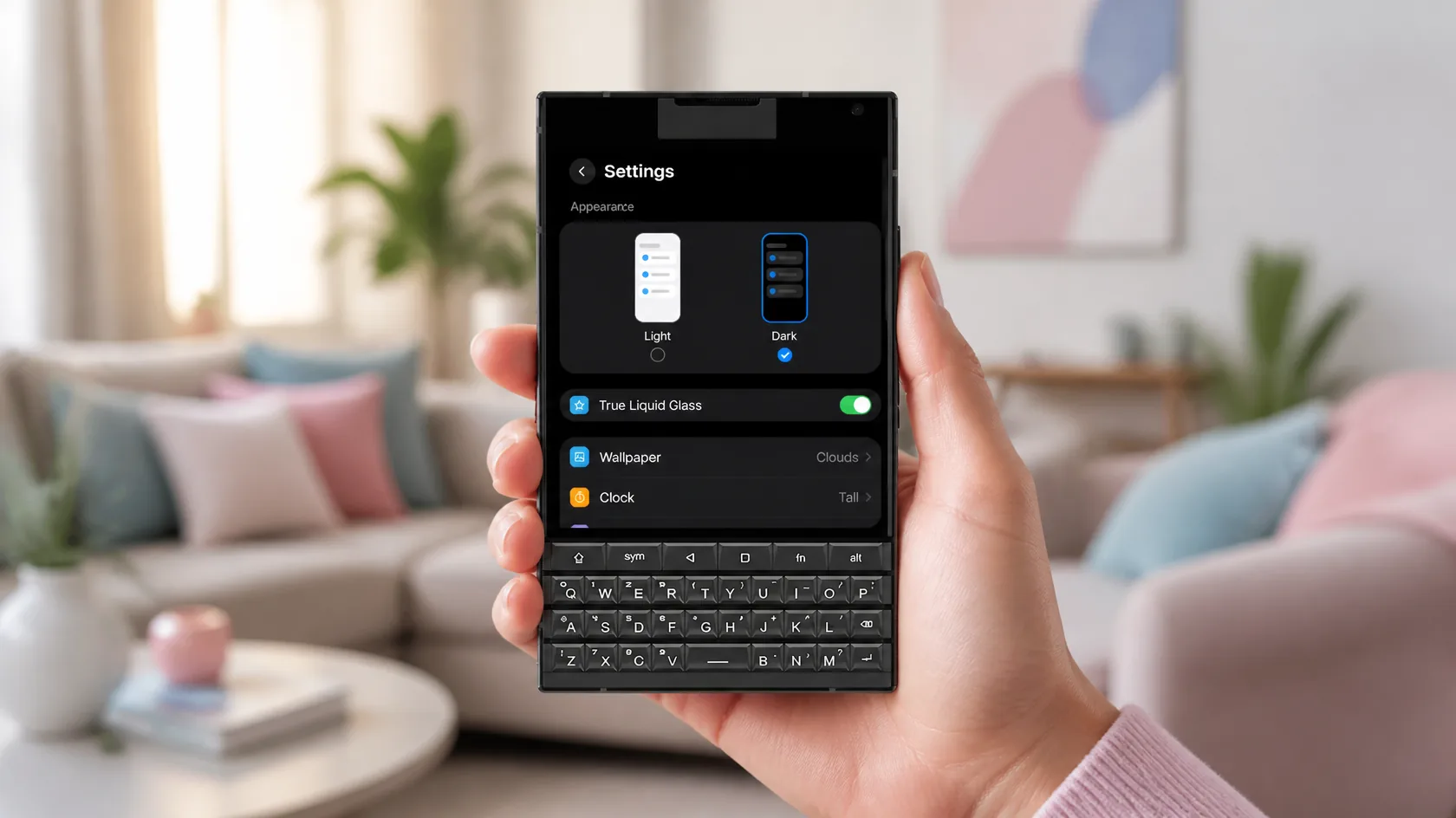
Pick the look, the clock and the icons, and make the Titan 2 feel like yours.
Settings on the Titan 2 look like the ones on an iPhone. Switch between light and dark, turn the liquid glass on or off, and choose the wallpaper, clock style and icons from one tidy list.
Install any icon pack from the Play Store and the whole Titan 2 Home Screen changes at once. Want just one app to stand out? Give it its own icon or a new name.
£4.99
One-off, with free updates. Runs on the Titan 2 and any Android 13 phone.
Buy on Play StoreIt's the one made for it. Most launchers are built for tall touchscreen phones and leave the keyboard doing nothing. Glass OS is designed around the Titan's square screen and keys, and it's tested on a Titan 2 Elite every day.
Niagara is a minimal list of apps. Glass OS goes the other way: liquid glass panes, a clock behind your wallpaper, widgets and the Hub for your messages, all driven from the keys.
Glass OS has its own key shortcuts, so you can hold a letter to open an app. Setup turns off Unihertz's version so the two don't fight over the same keys.
Yes. Updates are free through the Play Store, and they keep your notes, settings and layout.
Glass OS isn't only for the Titan 2. It runs on every Android 13 phone with a keyboard, and on touchscreen phones too.